How to Use Higgsfield AI: A Beginner’s Guide

This page has one affiliate link: the “Visit Higgsfield” button. If you subscribe through it, we may earn a commission at no extra cost to you. It doesn’t change what we say, including the downsides. Every other link goes straight to the source. How we make money.
The short answer
To use Higgsfield AI, sign up at higgsfield.ai, choose Image or Video, pick a model, write a prompt (or upload a photo), check the credit cost on the Generate button, then click Generate. The free tier adds a watermark; paid plans give monthly credits that don’t roll over.
What Higgsfield is
Higgsfield is an AI studio for making images, video and audio. Instead of one model, it puts its own tools next to other companies’ models under one subscription, and you pay for each result with credits. A credit is a unit you spend per image or clip; bigger, longer or sharper results cost more.
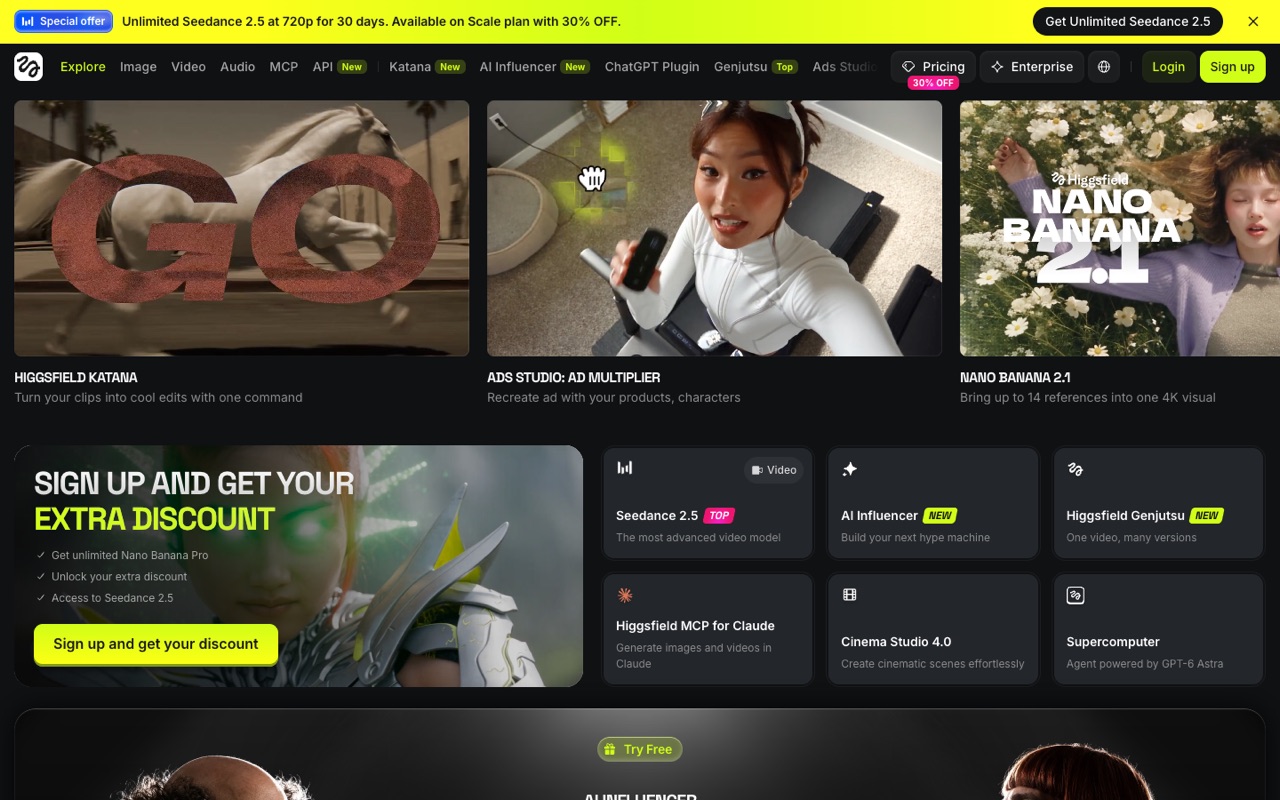
On October 14, 2026, its homepage named models such as Seedance 2.5, Nano Banana Pro and Wan 3.0, next to Higgsfield’s own Genjutsu. The line-up changes often. If you’re still choosing a tool, read Higgsfield vs Runway first.
Before you start: plans and credits
- Free tier: you can generate without paying, but only with a small set of models, no credits, and a watermark on every result.
- Paid plans: each includes a monthly credit allowance, with monthly or annual billing (annual costs less per month). There are also Team, Scale and Enterprise plans for businesses.
- Credits reset: subscription credits don’t roll over. Extra credit packs last 90 days.
- Refunds: the help center says you can get a refund within 7 days of your first purchase if you haven’t used any credits, minus a service fee of up to 6%. Renewals aren’t refundable.
We don’t print a Higgsfield price, because its pricing page has shown different plans and prices on different visits and we couldn’t confirm the US price. See Higgsfield pricing and plans for what we know, and check the pricing page in your country before you pay.
How to make your first video, step by step
Step 1: Create an account
Go to higgsfield.ai and select Sign up. You can continue with Google, Apple, Microsoft or email; email sign-ups get a 6-digit code to finish. You must be 18 or older (or the age of majority where you live). You can’t change the email on an account later, so use the one you want to keep.
Step 2: Start free or pick a plan
Try a few generations on the free tier to learn the interface. Upgrade when you need credits, the full model list or watermark-free files. Subscribing doesn’t clean files you already made for free; you have to generate them again.
Step 3: Choose Image or Video, then a model
In the top menu, choose Image or Video, then a model or tool, or keep the default. Higgsfield’s model guide gives a rule of thumb for video:
| If you want… | Higgsfield suggests |
|---|---|
| Realistic human movement | Seedance |
| Longer, stylized or multi-shot clips | Kling |
| Exact first and last frames | Wan |
| VFX and cinematic camera moves | Higgsfield DOP |
| Video with sound built in | Grok Imagine |
From Higgsfield’s “Which AI model should I use?” help article, October 14, 2026. Model availability can depend on your plan.
Step 4: Write a prompt or upload a photo
A prompt is the text that tells the model what to make. Higgsfield’s advice is to be specific and build it in layers: subject, details, setting and style, then camera and mood for video. It says a video prompt is “more like a shot list than a sentence.”
To turn a photo into a video, upload it as a reference image (if the model supports it). Then describe the motion, not the look: the action, the camera move, the timing and the mood. Make sure the prompt doesn’t contradict the image.
Step 5: Set options and check the cost
Adjust duration, aspect ratio or resolution. Before you click, read the number on the Generate button: that’s the credit cost of this result. It changes with model, resolution and length.
Step 6: Generate and find your result
Click Generate. Images usually finish faster than video, and higher-resolution video takes longer. The result shows where you made it and in Assets when it’s done.
Which Higgsfield tool to use
| Tool | Use it for |
|---|---|
| Cinema Studio | Cinematic video with camera, lens and lighting control |
| Marketing Studio | Product ads and UGC-style videos from a product URL or image |
| AI Influencer | A consistent virtual character built with controls instead of prompts |
| Canvas | A board that links prompts, references and results into one workflow |
| Supercomputer | An agent that plans a whole project from a plain-language brief |
From Higgsfield’s “Which Higgsfield tool should I use?” help article, October 14, 2026.
How to spend fewer credits
- Read the Generate button every time. The cost is shown before you confirm.
- Change one thing at a time. Higgsfield suggests adjusting a single element, such as lighting or lens, then regenerating, so you learn what each change does.
- Use free generations on the website. Some plans include free generations and time-limited “unlimited” models, but only on higgsfield.ai. MCP, CLI, Canvas and Supercomputer always use credits.
- Check failed jobs were refunded. Refunds for failed generations are usually automatic, but some models don’t refund. Check Manage Account, then Usage.
- Spend subscription credits first. They reset each cycle; Higgsfield already uses them before packs.
- Keep characters consistent. Save a character as a reusable reference (Soul ID or an Element) instead of re-describing it each time.
When Higgsfield isn’t the right tool
Skip it if: you want a free plan with real credits, a price you can plan around, or a simple one-model tool. Consider these instead:
- Runway: free plan with 125 one-time credits and published US prices.
- Luma AI: commercial use included on its entry plan.
- Pika: the cheapest paid start for personal projects.
See all four side by side in our guide to the best AI video generators, or browse every AI video and image tool.
How we wrote this guide
Every step comes from Higgsfield’s own help center and homepage, read on October 14, 2026. We haven’t tested Higgsfield hands-on yet, so menu names may differ slightly from what you see if the site changes.
FAQ
Is Higgsfield AI free to use?
Partly. Higgsfield’s help center says you can generate without a paid plan, but only with a small set of models, no credits, and a Higgsfield watermark on every result. To remove the watermark you need a paid plan, and files made on the free tier must be generated again.
How many credits does a Higgsfield video cost?
It depends on the model, resolution and length. Higgsfield shows the exact cost on the Generate button before you confirm, so you always see the price of a clip before you spend credits. Your usage history is under your avatar, Manage Account, then Usage.
Can I turn a photo into a video with Higgsfield?
Yes. In the Video section you can upload a reference image if the model supports it, then describe the motion. Higgsfield’s prompt guide says the image already sets the look, so your prompt should describe action, camera movement, timing and mood.
Can I use Higgsfield videos commercially?
Higgsfield’s help center says its terms don’t restrict commercial use and don’t tie it to a plan. It also warns that watermarked free-tier files may not suit commercial work, and legal IP indemnification is only on the Enterprise plan.
How do I cancel a Higgsfield subscription?
Click your avatar, choose Manage Account, open Subscription, scroll to Plan Settings, then Manage Subscription, Show and Cancel Subscription. Your plan works until the paid period ends. Subscription credits then expire, and cancelling doesn’t include a refund.
Do Higgsfield credits roll over?
Subscription credits don’t. They reset every billing cycle (every 30 days on annual plans). Credit packs, Auto-Refill and Boost credits last 90 days from purchase, and subscription credits are always spent first.
Sources
All checked October 14, 2026.
- higgsfield.ai/creator-hub/help-center/getting-started/what-is-higgsfield
- higgsfield.ai/creator-hub/help-center/getting-started/create-an-account-and-sign-in
- higgsfield.ai/creator-hub/help-center/getting-started/how-do-i-create-my-first-generation
- higgsfield.ai/creator-hub/help-center/getting-started/how-do-i-write-a-good-prompt
- higgsfield.ai/creator-hub/help-center/ai-models/which-ai-model-should-i-use
- higgsfield.ai/creator-hub/help-center/tools/which-higgsfield-tool-should-i-use
- higgsfield.ai/creator-hub/help-center/plans/how-do-higgsfield-plans-work
- higgsfield.ai/creator-hub/help-center/credits/how-credits-work
- higgsfield.ai/creator-hub/help-center/credits/watermark-and-how-to-remove
- higgsfield.ai/creator-hub/help-center/refunds-and-cancellations/how-do-i-cancel-my-subscription
- higgsfield.ai/creator-hub/help-center/account-and-privacy/who-owns-my-generations-and-can-i-use-them-commercially
- higgsfield.ai/pricing